






Git is a version control system. (Image: Postmodern Studio / shutterstock)
Most software developers sooner or later come into contact with the version control system Git, and at the latest in the first large project with more than one team member, there is branching and merging (“branching and merging”) on the agenda. But what exactly is a branch in Git? And what happens in a merge?
Next branch: Teamwork
Imagine that you are working with other colleagues on a software project; your team is developing and designing a webshop. Perhaps you are sitting together in an office and discussing the tasks at hand during the coffee breaks. However, it is more likely that your workplaces are in different locations, possibly even in different countries or time zones.
While a developer has an idea for a has a new feature and wants to start coding immediately, a colleague receives a call from the customer: A bug in the online shop must be fixed quickly. At the same time, a support employee tries to bring the documentation up to date.
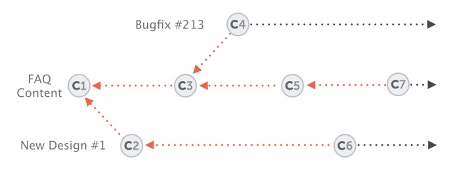
In such a scenario it is difficult to impossible to not to get in each other’s way. Any code change always affects everyone else. A commit history in Git with a single main branch could look like this:

(Graphic: Tobias Günther)
The dashed red lines show how confusing the whole thing is. Which commit belongs to which feature? And on what code basis will it continue in the future?
See the forest for the branches
Let’s bring structure into the project and into the team: Git Branches. A branch is a junction from the main development line – you should always take such a junction if you want to leave a (stable) code base in order to implement a new feature or a hotfix, for example. Instead of the rather chaotic workflow, a project with branches could look like this:
Every small or large change occurs in its own branch, the cannot affect the stable base – like in a kind of sandbox. If an error occurs in one branch, it has no effect on the other branches and they are still safe. Does the hotfix work? Has the new feature been tested extensively and found to be good? Then it is always possible to merge a branch with the main line
Most version control systems (VCS) support some form of branching ; the function is therefore not a unique selling point of Git.Branching in Git is so clever and lightweight that branching and switching between the development branches is almost instantaneous and takes up significantly less disk space than with other VCS.
Let’s summarize:
- A branch is a completely independent development line with its own history.
Tree maintenance: workflow with branches in Git
Branches in Git are part of the workflow to. In most projects there are several branches that are being worked on in parallel, and merging them several times usually works without any problems. Many teams have agreed on a certain workflow and determined that only stable code is in the main branch (mostly master or main). Whenever a feature branch gets the green light and is considered stable, it is merged with the master. So there are two different types of branches:
- Long-lasting branches (long-running): They are retained throughout the life of a project and are not tied to specific features. In addition to the main line, there are often other long-lasting branches such as staging or production that represent certain stages.
- Short-lived branches, also called topic branches: New functions or bug fixes usually end up in short-lived branches. The branches are therefore not intended to be maintained throughout the life of a project. Instead, they are created to experiment, to implement new ideas, or to fix bugs. As soon as a short-lived branch has been integrated into a long-term branch, it can be deleted.
Tip: It has proven to be best practice never to commit to long-term branches. Code should only be specifically integrated into the main line. In many projects there is a selected group of developers who have sole authority to do so.
In practice: branching and merging
The command of the same name “git branch” is used to create, list, rename and delete branches. To create a new branch, write the branch name after the command. Without further information, the command lists existing branches:
$ git branch new-design
$ git branch
Bugfix # 213
new-design
master
staging
The asterisk indicates which branch you are currently in, i.e. the current HEAD. The HEAD file is a pointer to the current branch reference. To switch to the new branch, use the command “git checkout” – the parameter “-b” is a practical abbreviation. This is how you create a new branch and switch to it at the same time:
git checkout -b new-design
Danger: The creation of new branches with “git branch” always happens in the local repository. The new branches will only migrate to the remote repository on the server if you publish an existing local branch via “git push -u origin”.
You made a mistake while creating a branch? It does happen, but it’s not a problem. The command …
git branch -m
… renames the current HEAD. Do you want another B ranch, then enter the old and the new name after “git branch -m”.
The same applies here: This is only possible in the local repository. To rename a remote branch, two steps are necessary: delete the old branch and push the new branch from the local repository:
git push origin – delete
git push -u origin
The parameter “-d” is used to delete a branch ; behind it is the name again:
git branch -d
It is possible to specify several branch names. However, if a branch contains changes that have not yet been merged, deletion does not work without further ado. In this case the parameter “-f” helps, which forces the process – be careful, data loss!
To switch between the branches you can use either “git checkout” or the “git switch” command introduced around two years ago.
We want to conclude this practical part briefly talk about merging, the so-called merging. This will take over all new commits from another branch in the current HEAD branch. Only two commands are required for this:
git switch staging
git merge feature / new-layout
The first command changes to the branch that is to incorporate the changes made by the other, the second executes the merge with the branch that contains the modifications.
Got to the green branch
Branches belong to Git like a trunk and branches to a tree. Once you have understood the concept, you will not only find it easier in your own projects, but above all you will strengthen teamwork.

Tobias Günther is one of the founders of Tower, a popular desktop GUI for Git on Mac and Windows. In addition, Tobias has helped many developers to understand Git better and to use it more productively in countless blog posts, workshops and talks.

